/ Problem
The team wanted a PSX-era low-res aesthetic
The Frostbound team wanted their game to have a retro, PSX-era look with chunky, hard-edged pixels across the entire scene, but the game was being developed at modern screen resolutions. They needed a rendering approach that would make the game look like it was natively rendered at a low resolution without downgrading the project's internal resolution settings or modifying the rendering pipeline. The effect also needed to support multiple resolution options so players could eventually choose their preferred level of pixelation through an in-game settings menu.
/ Approach
Render small, display big, fix what breaks
Rather than applying a post-processing blur or modifying the rendering pipeline, the solution uses Unity's RenderTexture system
to capture and re-display the game view at a target resolution. Then also addresses the side effects that come with it.
01 - Capture
Low-Resolution RenderTexture
The game camera renders to a RenderTexture at a selectable resolution, ranging from 320×180 up to 960×540,
instead of directly to the screen. The entire scene including geometry, lighting, and effects is rasterized at that resolution.
The available options are designed to be exposed as a player-facing setting, letting each player choose their preferred level of pixelation.
02 - Display
Point-Filtered Upscale
The texture is stretched to fill the screen via a fullscreen RawImage on a separate UI canvas, using Point (nearest-neighbor) filtering.
This preserves the hard pixel edges rather than blurring them during the upscale, producing the blocky PSX look regardless of which resolution option is selected.
03 - Fix
Raycasting Workaround
A side effect: Camera.main now reports the RenderTexture's resolution as its viewport, breaking world-space UI raycasting.
Because the game uses a locked-center cursor, the fix bypasses Unity's EventSystem entirely, mouse left-click is routed through a manual RaycastAll
from screen center via ActivateButtonUnderCrosshair(), the same path gamepad input already uses.
/ Implementation
RenderTexture setup + input fix
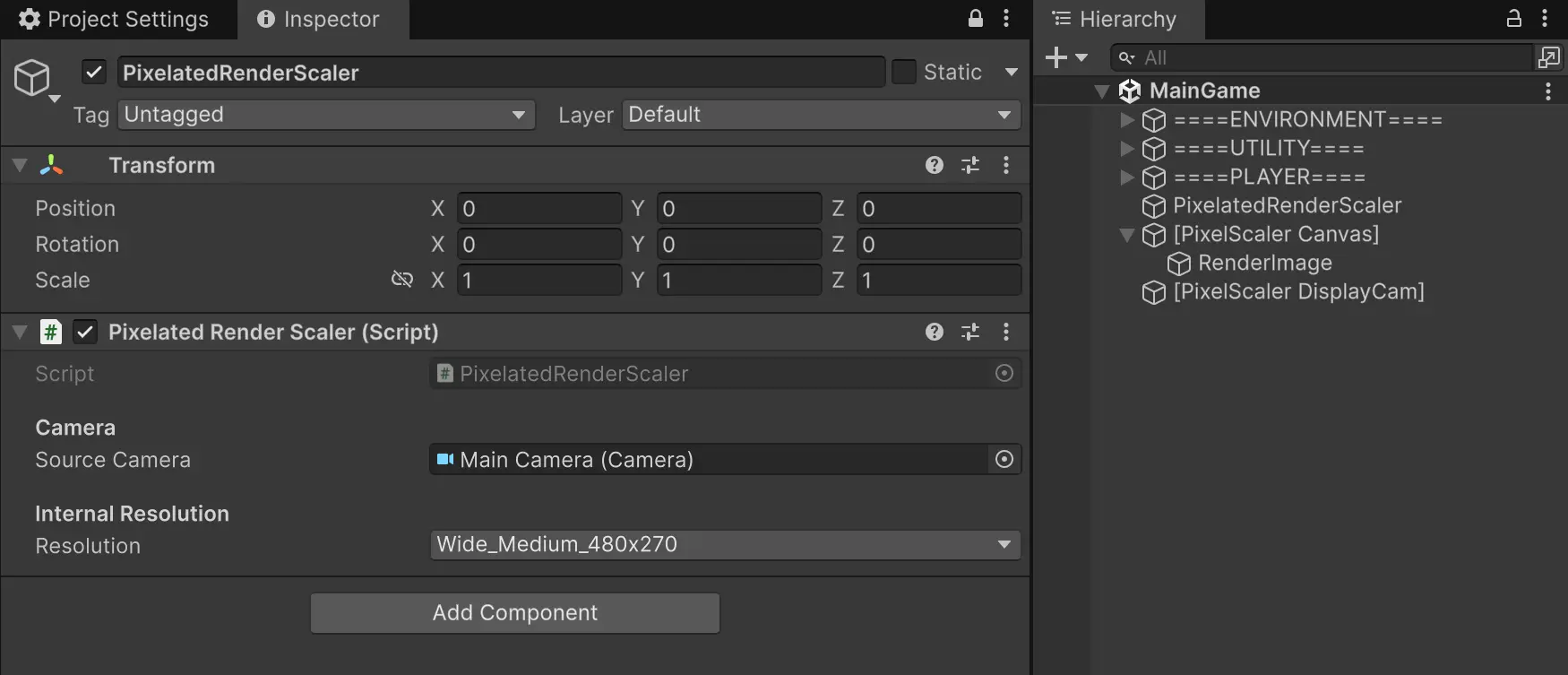
Fig. 1: Pixelated Render Scaler Inspector Setup (480×270, Point filter)
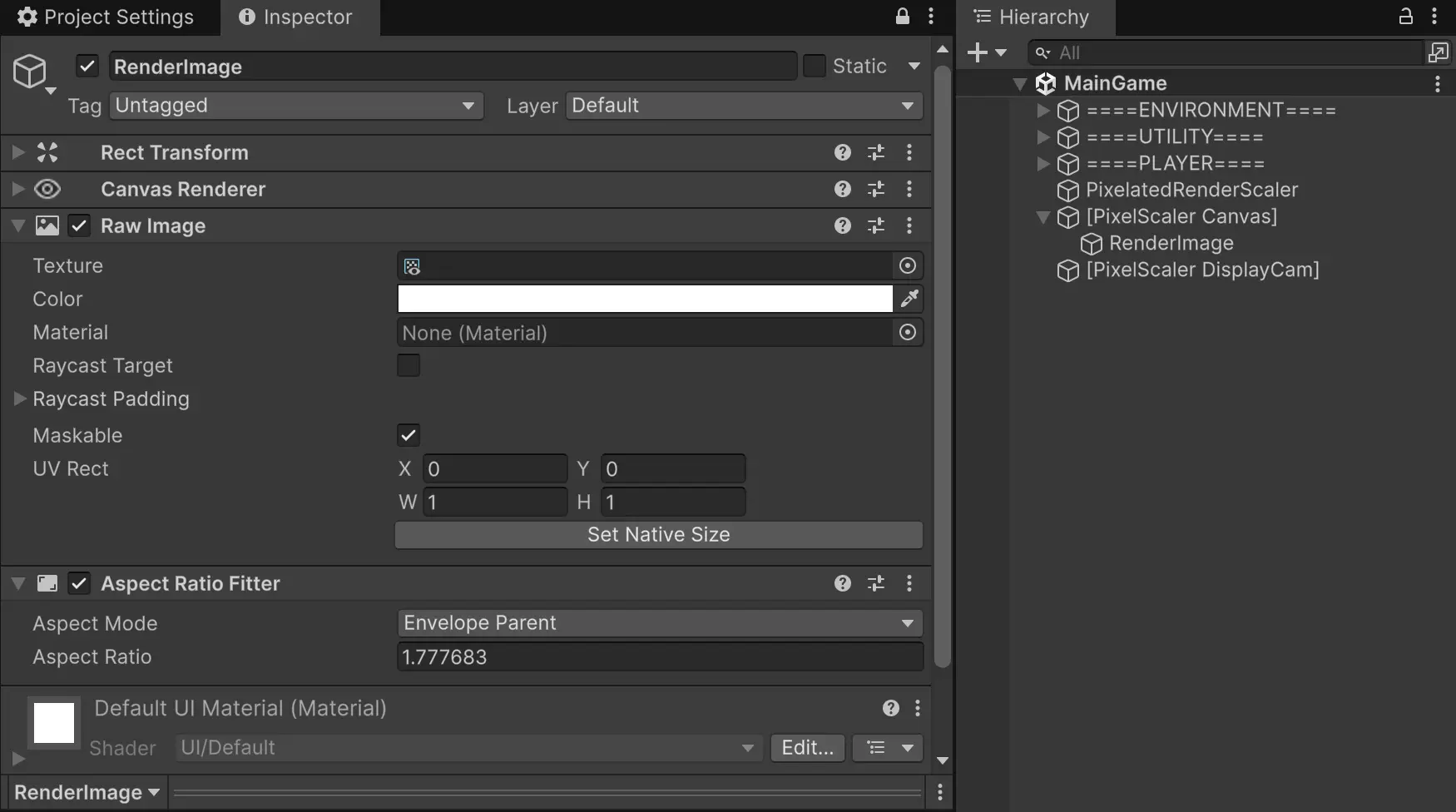
Fig. 2: Camera component with Target Texture assigned
/ Results
RenderTexture Side-By-Side Comparisons
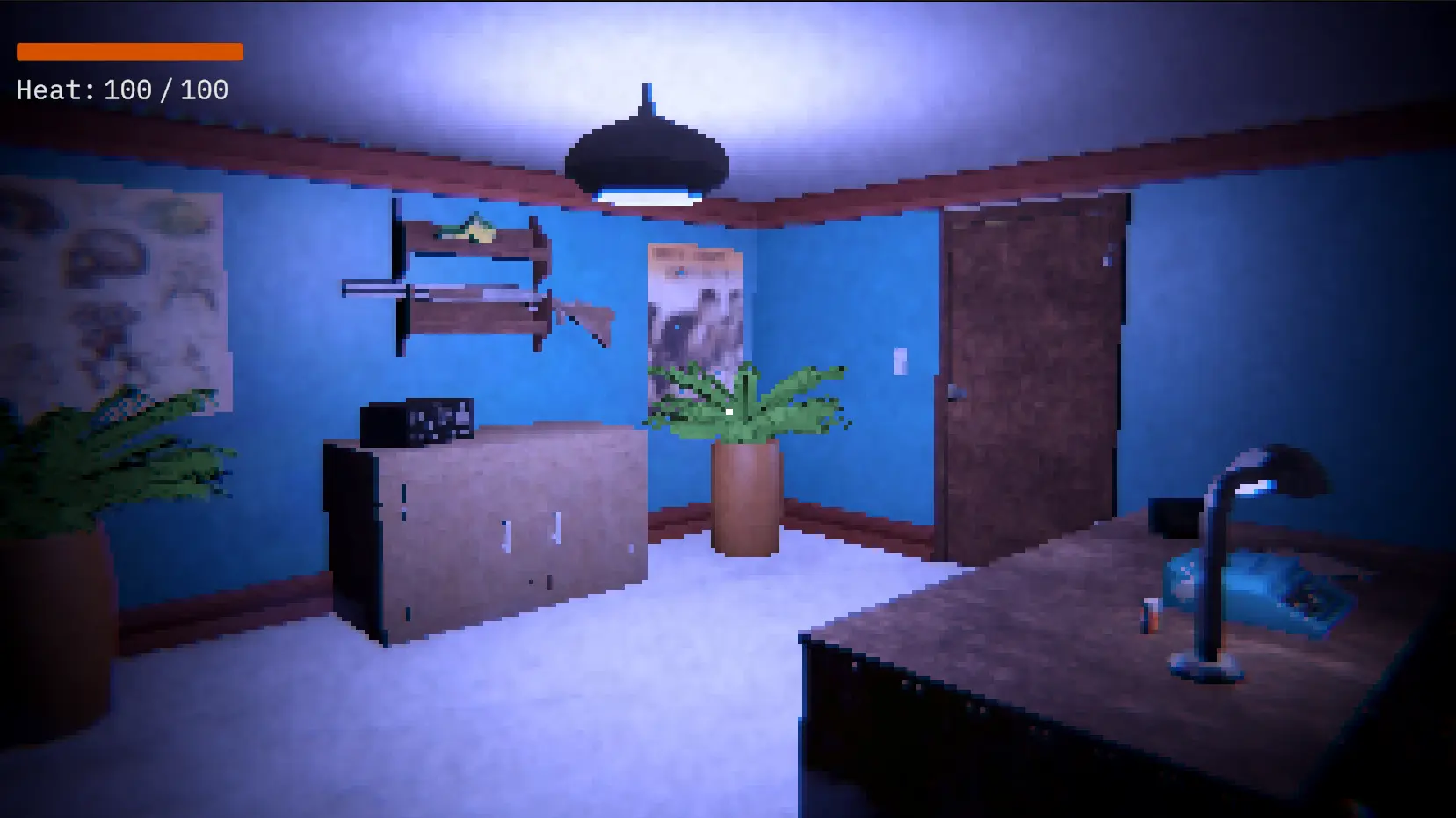
Fig. 3: Rendered at 320×180
The Doctor's Office
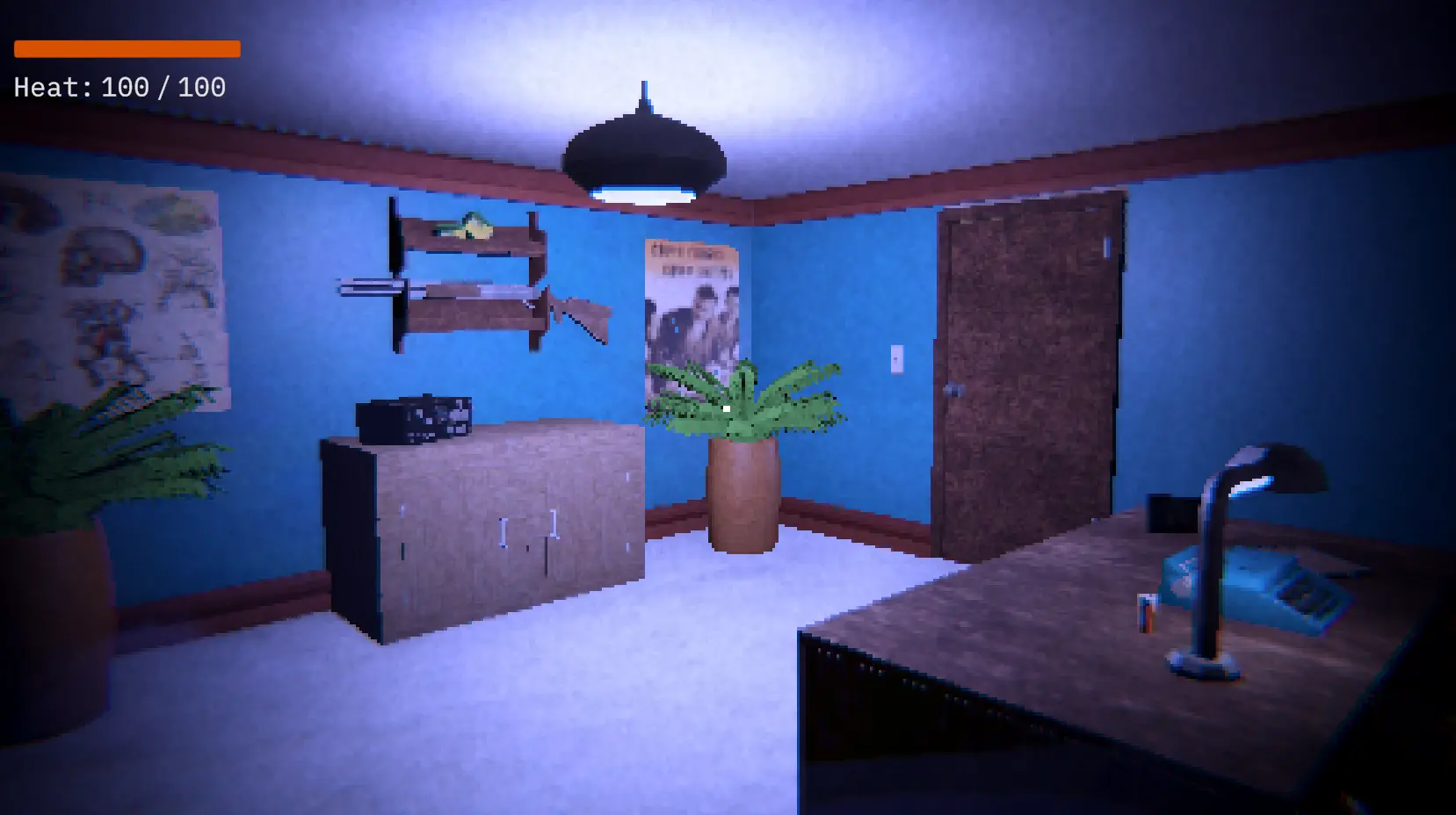
Fig. 4: Rendered at 480×270
The Doctor's Office
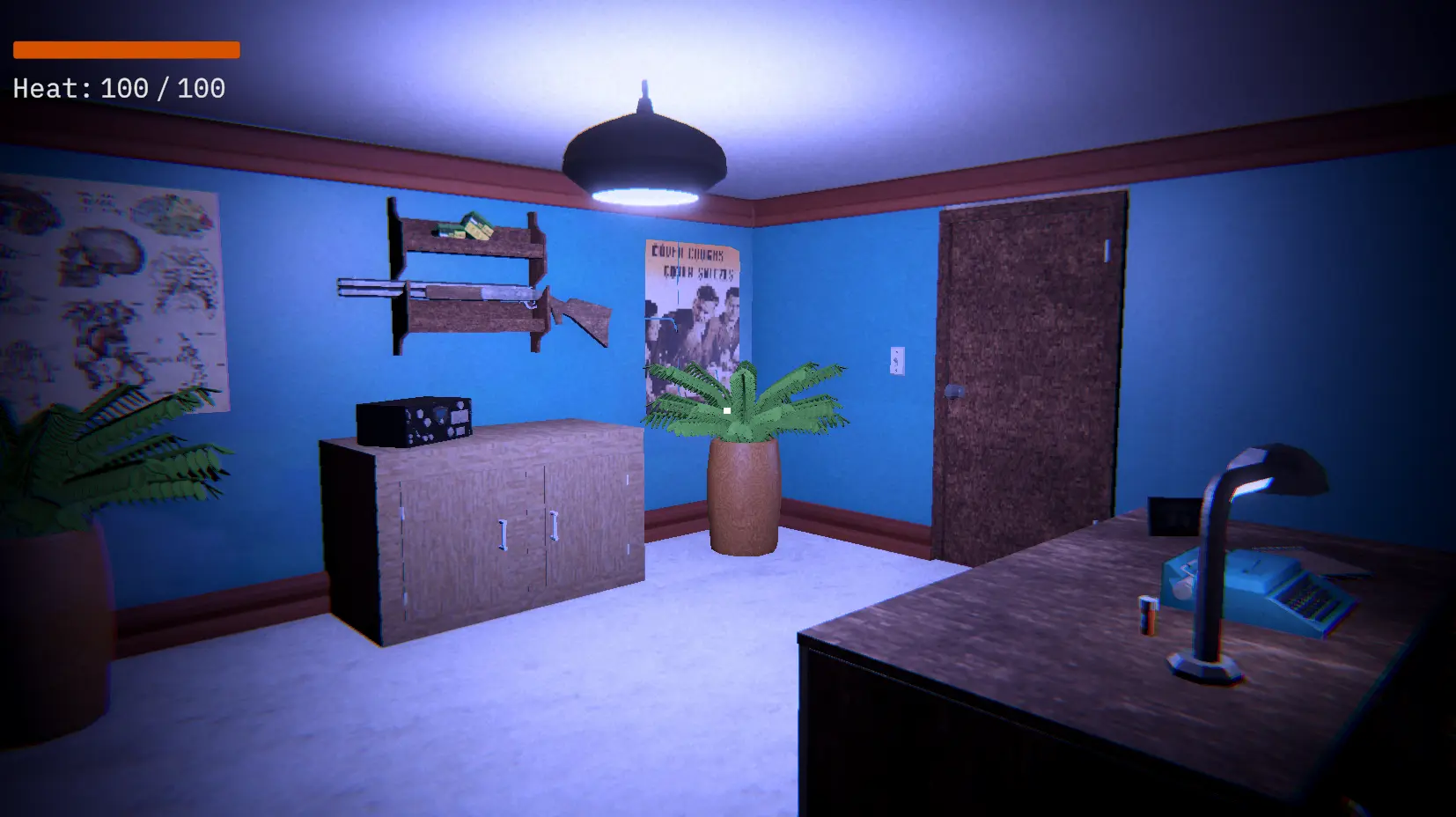
Fig. 5: Render Texture off, native resolution
The Doctor's Office
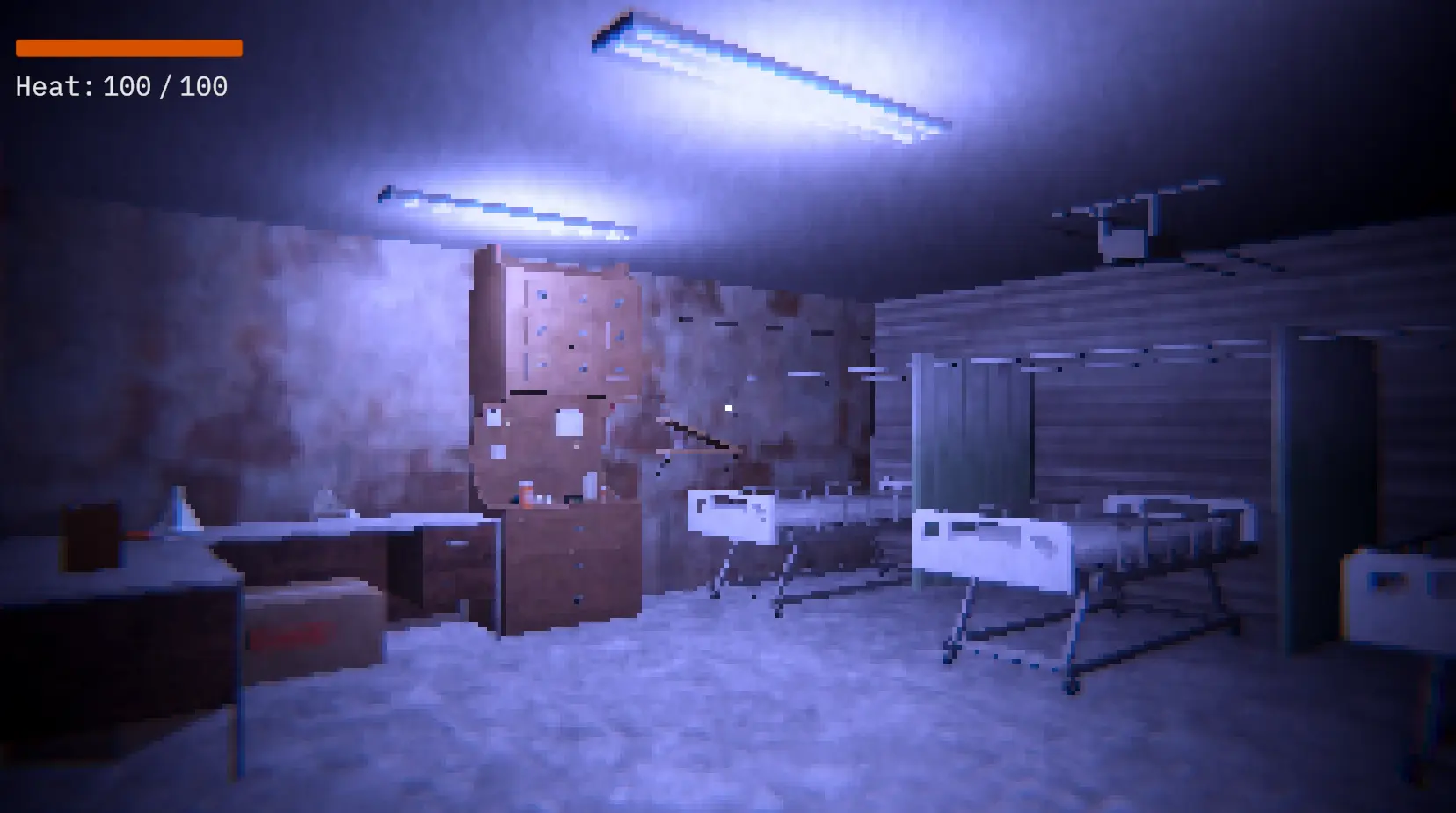
Fig. 6: Rendered at 320×180
The Clinic
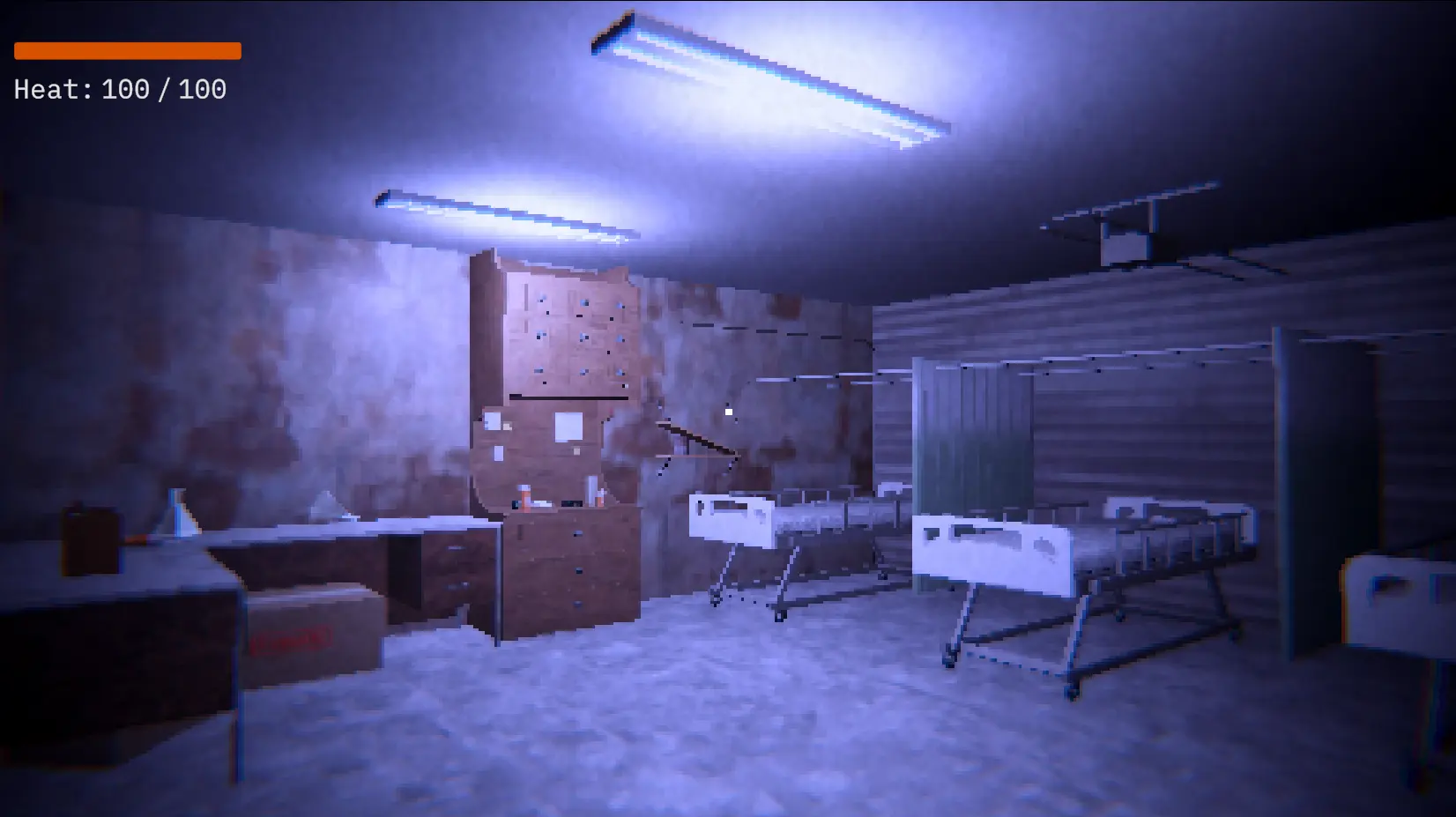
Fig. 7: Rendered at 480×270
The Clinic
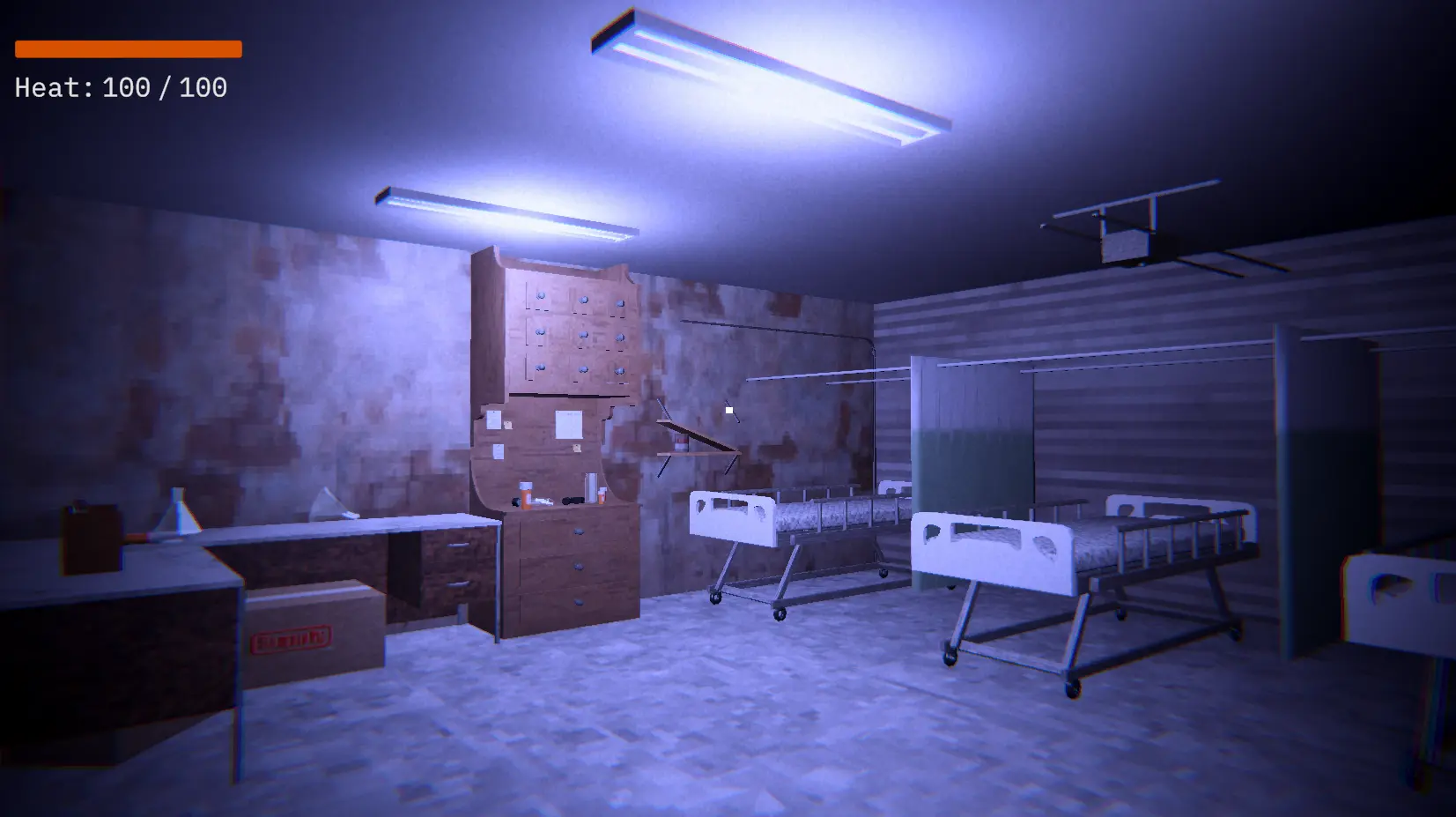
Fig. 8: Render Texture off, native resolutionThe Clinic
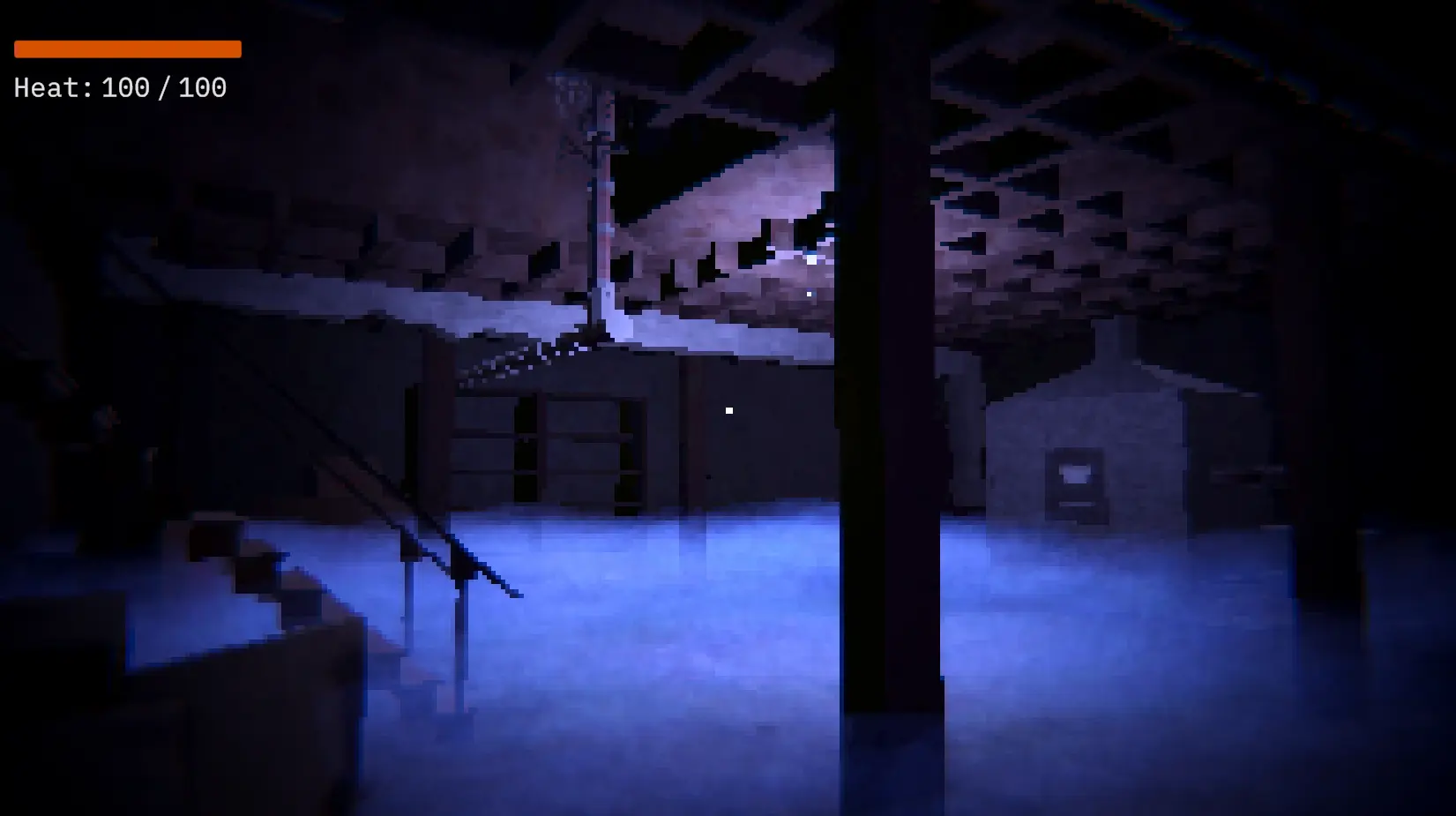
Fig. 9: Rendered at 320×180
The Basement
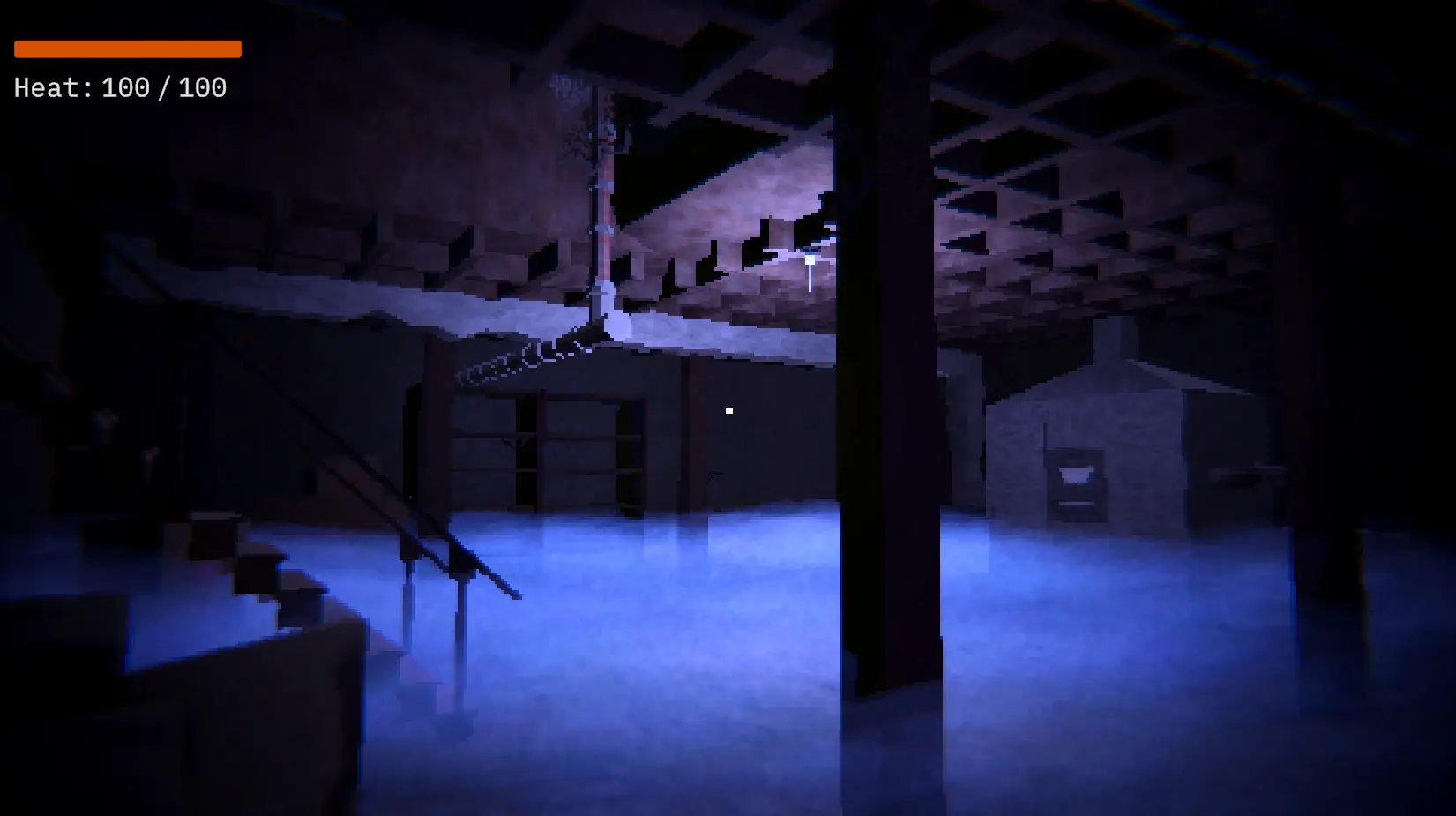
Fig. 10: Rendered at 480×270
The Basement
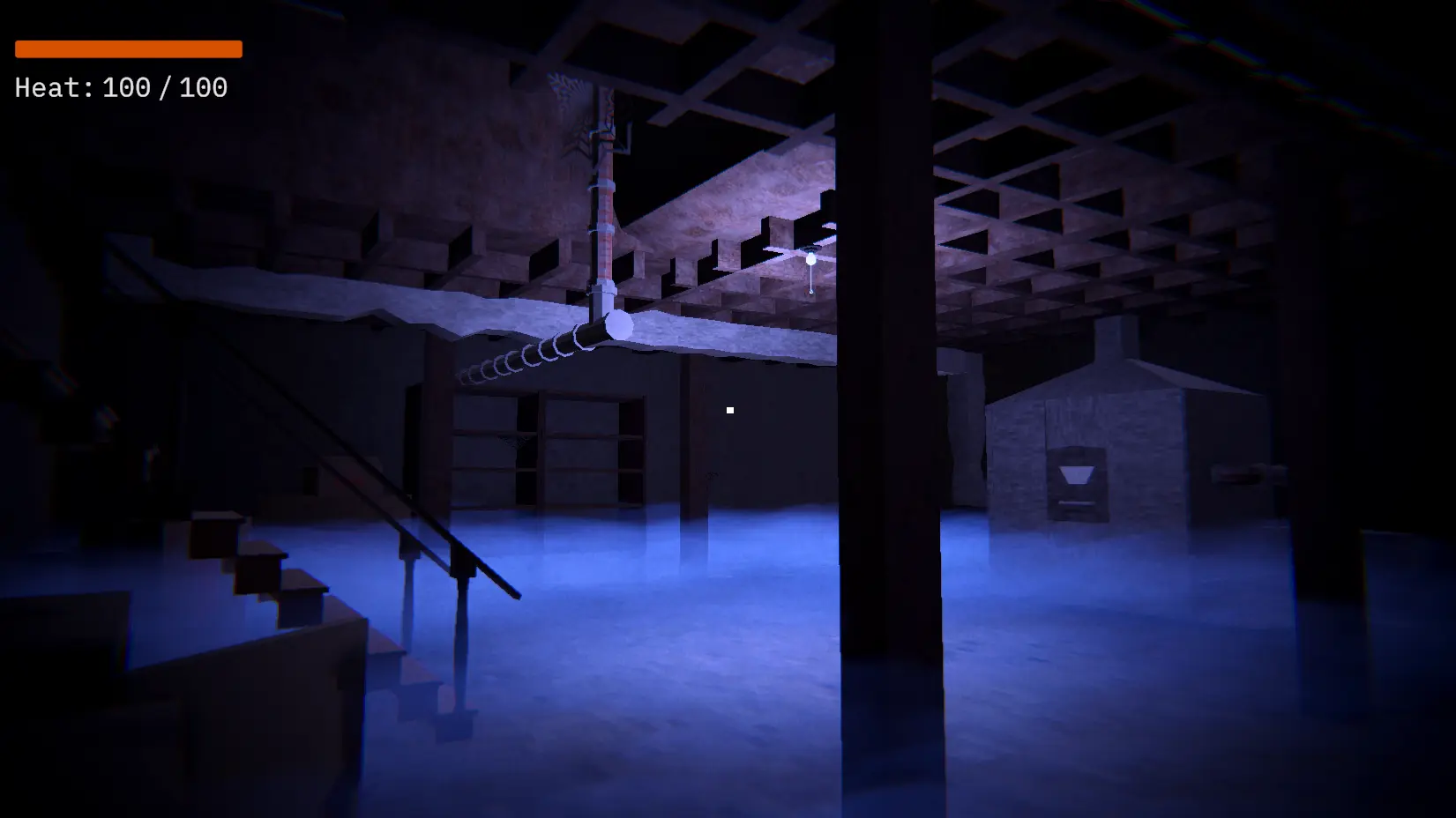
Fig. 11: Render Texture off, native resolution
The Basement
/ Outcome
Non-destructive retro rendering + cleaner input
The pixelation effect was delivered as a lightweight, non-destructive addition to the project's rendering setup as a RenderTexture, a display canvas, and a camera configuration. The game now renders with the intended PSX-era aesthetic without any changes to the project's internal resolution, asset pipeline, or shader setup. The configurable resolution range (320×180 to 960×540) gives the team a ready-made set of options to expose in an in-game settings menu, letting players choose their preferred level of pixelation.
The raycasting side effect was resolved by unifying mouse and gamepad input through a single manual raycast path. Both input methods now share the same code path for UI interaction, which also simplified the project's input handling and eliminated a class of potential input bugs going forward.
Non-destructive
No changes to project resolution, assets, or shaders - the effect is an additive layer on top of the existing setup.
Player-configurable
Multiple resolution options (320×180 to 960×540) ready to expose in an in-game settings menu.
Input unification
Mouse and gamepad now share a single raycast path, simplifying the input system.
Lightweight delivery
Three components total: RenderTexture asset, display canvas, and camera configuration.